1. How the four tools fit together
They are four stations on one line. None of them applies for you.
| Stage | Tool | The question it answers | What comes out |
|---|---|---|---|
| Find | The Job Scout Builder | What is open that clears my gates and scores above my threshold? | A ranked daily shortlist and a payload block |
| Decide | The Apply Decision Worksheet | Does this posting earn an hour of my tailoring time? | One call per role: Apply, Investigate First, or Pass |
| Prepare | The ATS Reality Check | Will the parser read this, and does my language match theirs? | One call on the document: Send as is, Fix first, or Rewrite |
| Apply | You | What advances today? | Applications and outreach |
| Rehearse | The Interview Evidence Kit | Can I answer what they will ask with a number attached? | A prep sheet, the questions to ask back, and a debrief |
| Track | Teal, Huntr, or whatever you already use | Where does this one stand? | A memory, so nothing gets applied to twice |
2. Two ways to run the first two tools
This section covers the builder and the worksheet. The ATS Reality Check and the Interview Evidence Kit are single page tools with no guided mode and nothing to switch.
Both of the first two tools open in guided mode. You answer one screen at a time, a progress bar tells you where you are, and each screen carries a tag that says whether it is Required, Worth your time, or Optional with defaults ready. Guided mode is the default because both tools ask a lot of questions, and a wall of fields is where most people quit.
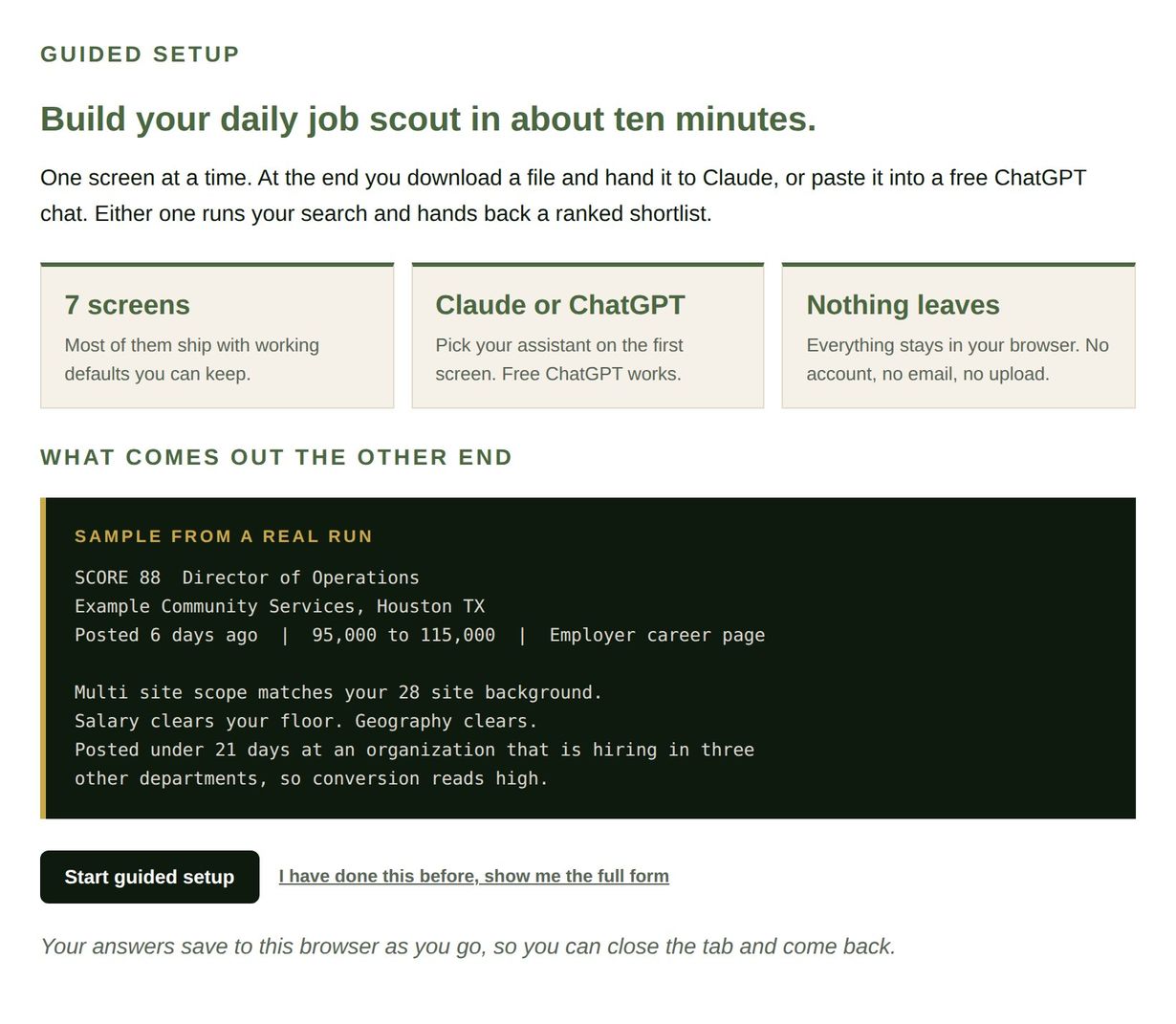
The full form is still there. A link at the top of every screen reads Show all questions on one page, and clicking it returns the single page layout with every part visible and the live preview alongside it. The choice is remembered on that browser, so a repeat user never sees the guided screens again.
| Guided mode | Full form | |
|---|---|---|
| Who it is for | First time through | Repeat users and anyone editing one field |
| Layout | One screen at a time with a progress bar | Every part stacked, live preview alongside |
| Guidance | One line per screen, plus a Required or Optional tag | The same one line, plus the field hints |
| How to get there | Default | Show all questions on one page, or add ?full=1 to the URL |
The walkthroughs in the next two sections are written by part, and the numbered parts are the same in both modes. Part 5 in guided mode is the fifth screen. Part 5 in the full form is the fifth card down the page.
3. Tool one: The Job Scout Builder
A free fillable builder. You answer the fields, and it writes a file that an AI assistant runs as a daily job scout. The file is the product. The scout reads it, checks your tracker, opens employer career pages, scans your boards, applies your gates, scores what survives, and hands back a ranked shortlist.
Seven parts, seven screens in guided mode. Parts 1 through 4 describe you, the roles you want, the roles you never want to see, and where to look. Parts 5 through 7 ship with working defaults, and the screen tells you so, which means a first pass takes about ten minutes.
What is new
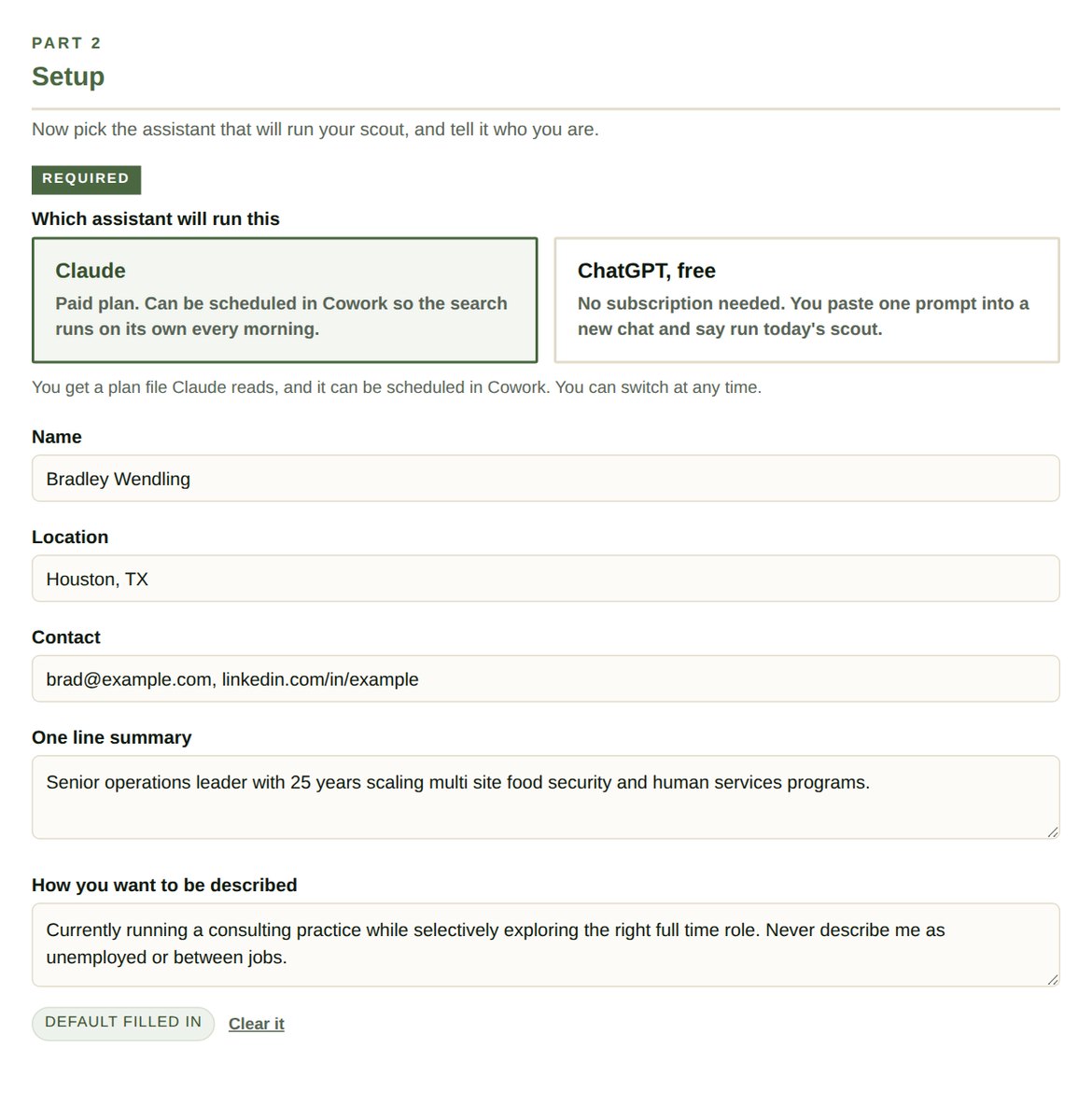
- The role comes first, then the assistant. Part 1 is your target role profile, because titles and geography drive every search that runs. Part 2 is where you pick Claude or free ChatGPT. Everything after that adapts: the preview, the button labels, the filename, and the run instructions inside the file. You are never told to open a paid tool you do not have.
- Start from your resume or LinkedIn PDF. Optional, and it sits at the top of Part 1. The file is read inside your browser and fills in name, contact, location, titles, and proof points. Nothing is uploaded. It only writes to empty fields, so it never overwrites what you typed.
- Tap to add instead of typing. Sectors and job sites have chips that toggle on and off. Tracker location is eight presets: Google Sheets, Google Docs, Excel, iCloud Drive, Notion, Airtable, a tracking app, or no tracker yet.
- Defaults you can see and control. Every field carrying a default shows a Default filled in badge with Clear it and Restore the default beside it. On a phone this was the single hardest thing to figure out in the old version.
- An editable finished file. The last screen holds the whole file in an editable box. What you see there is exactly what downloads. There is a Restore the generated version link if you want to start over.
Features
- Guided screens with a skip. Seven parts, one at a time, each tagged Required, Worth your time, or Optional defaults ready. From step three onward you can jump straight to the finished file.
- A saved draft. Your answers save to your browser as you type. Close the tab, come back, and the tool offers to restore where you left off. When you download the plan file, the durable parts of it are promoted to your Career File so the other three tools fill themselves in. Nothing is uploaded.
- Twelve part output file. Identity, target profile, exclusions, sources, tracker, gates, scoring, report format, payload block, tracker log, resume versions, and run instructions for both assistants.
- Live preview. The file builds itself as you type. Blank fields stay as labeled prompts you can finish later.
- Hard gates that run before scoring. Confirmation, exclusions, salary floor, geography, and level are pass or fail, not weights. You no longer write them. They are generated from what you already answered.
- A confirmation gate ahead of all of them. An aggregator page proves a listing existed, never that the seat is open. LinkedIn, Indeed, Glassdoor, and ZipRecruiter keep rendering a clean posting long after the employer pulls the requisition, so the scout checks every aggregator find against the employer's own careers page before it scores anything. Listed there means confirmed and the employer URL goes in the entry. Not listed there while the careers page loads and shows current openings means the seat is closed. A careers page that will not load means unconfirmed, and an unconfirmed role cannot rise above the Watch tier no matter how well it scores. Apply Today and Strong Consideration both require a confirmed employer URL.
- Tracker memory. Part 5 tells the scout where your tracker lives. The status vocabulary and the dedupe rule are standard now and written into the file.
- Weighted scoring with conversion likelihood. Five weights totaling 100, including a factor for whether the posting reads like a real hire.
- A stop rule. Three consecutive runs with nothing above threshold forces the scout to say the source list is exhausted and name one change.
- A worksheet payload block. Part 9 of the file defines the JSON the worksheet loads, plus a prefill link built from the same object.
- A fractional consulting leads section, off by default. One checkbox on Part 7. Turn it on and every report adds a section for organizations that look like they need interim help rather than a hire. Leave it off and the report sections renumber cleanly.
Benefits
- You stop losing evenings to scrolling. The scan runs while you sleep and lands as a shortlist.
- The same closed role stops coming back, because the scout reads your tracker before it scores anything.
- Roles you would never accept never reach your list, because a gate failure ends the evaluation before scoring starts.
- You are not asked to author rules you have no way to evaluate. The parts that used to demand your own gate logic now ship correct.
- Your criteria live in one file you can edit in five minutes when the search shifts.
- A dry board becomes visible instead of silent. The stop rule names it and pushes you toward outreach.
How to use it
Seven screens in guided mode, or seven cards down the page in the full form. Either way the parts are numbered the same.
- Part 1, your target role profile. Import a resume or LinkedIn PDF at the top if you have one handy. Then titles one per line, sectors in priority order, geography, the counties inside that geography, three salary numbers, and what the role should require. The salary numbers are target range, minimum acceptable, and the floor below which nothing is surfaced. Name the counties. A scout given a metro name and no county list will invent a commute radius and search against it.
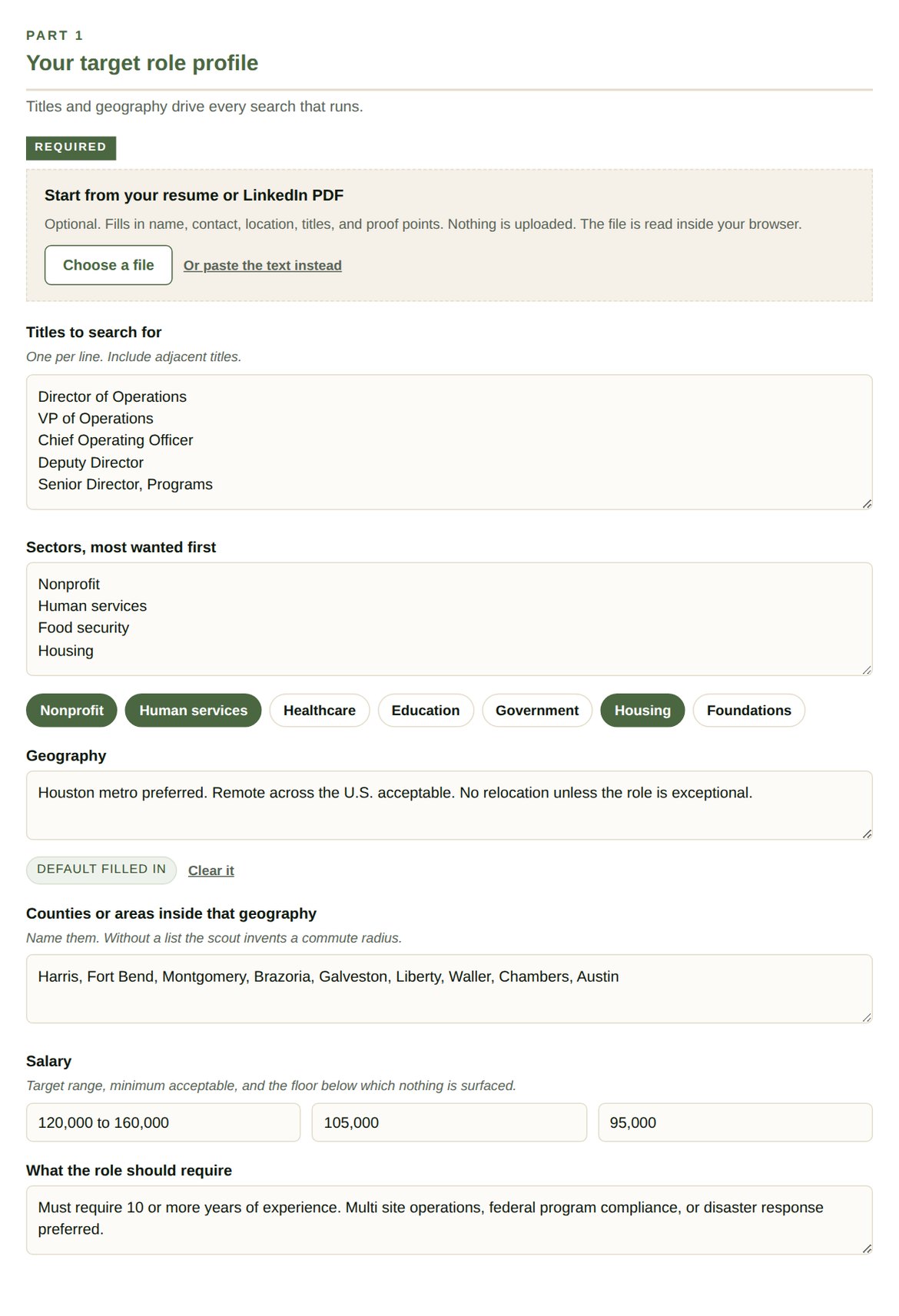
Part 1. The resume import sits at the top. The floor field is the number the salary gate enforces later, and the county list is what stops an invented commute radius. - Part 2, setup. Pick Claude or free ChatGPT, then name, location, contact, a one sentence summary, and how you want to be described. That last field is what keeps the scout from calling you unemployed in its own reasoning, and it arrives filled in.
- Part 3, your exclusions. Organizations you will never consider, with a one line reason so the logic survives. Sectors that are permanently out. Gray areas to flag for review rather than drop.
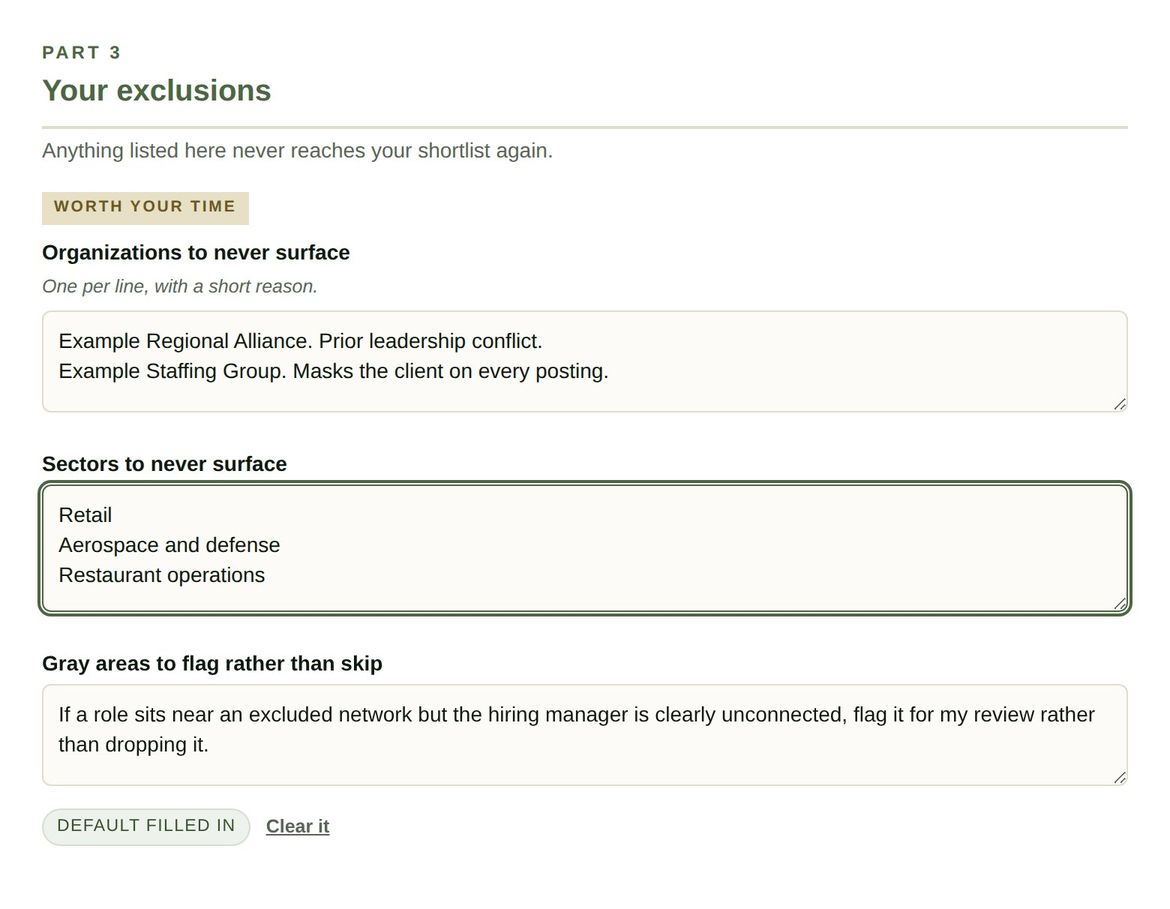
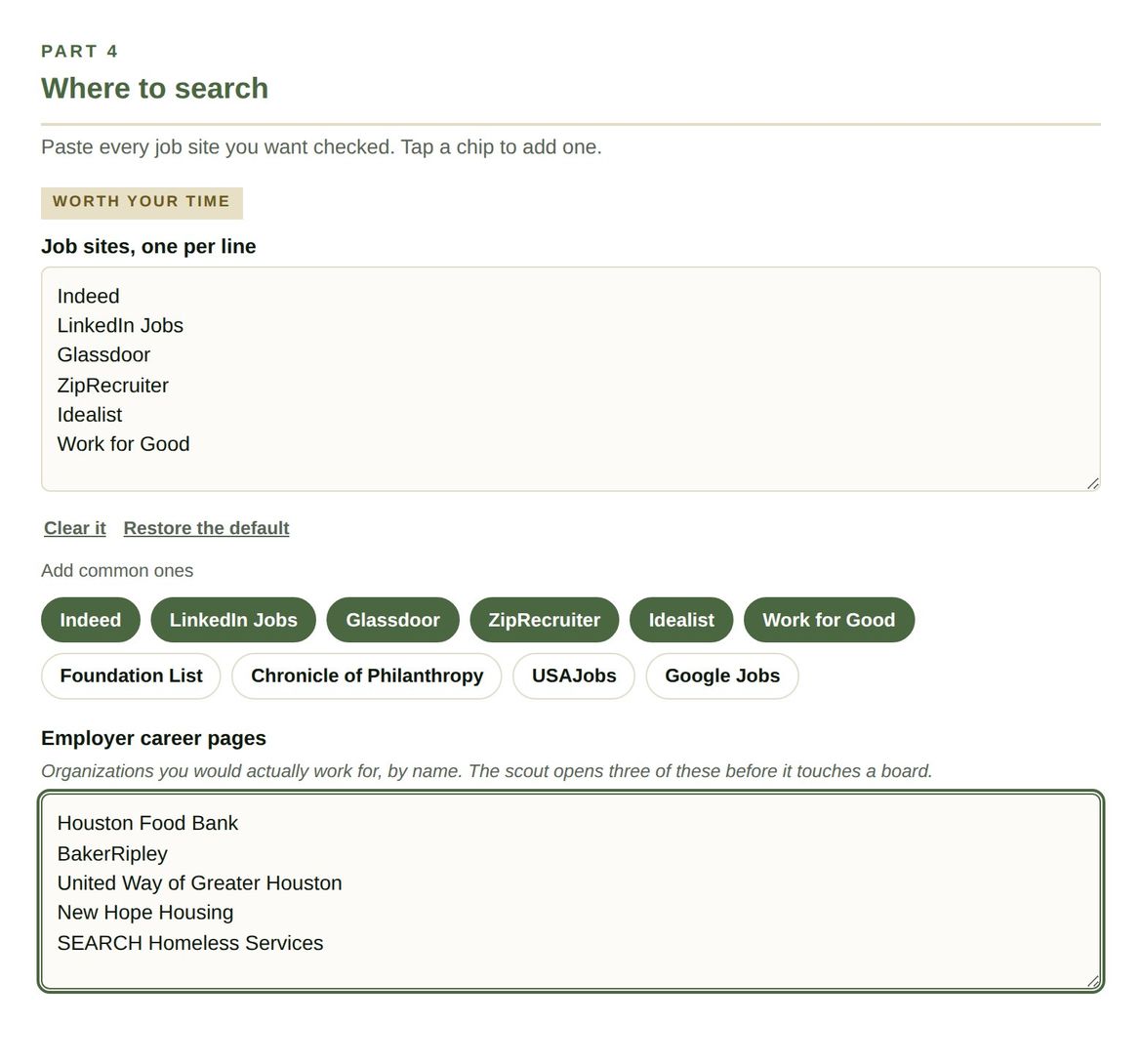
Part 3. Give each excluded organization a reason. Six weeks from now you will not remember why it is on the list. - Part 4, where to search. One box for every job site, with chips underneath for the common ones. Then employer career pages by name in their own box. If you fill in one thing on this screen, make it the employer pages. They return roles at organizations that already passed your sector gate.
- Part 5, your tracker. Tap the preset that matches where yours lives, or write your own line. That is the whole screen now. The status vocabulary and the dedupe rule are standard and already in the file.
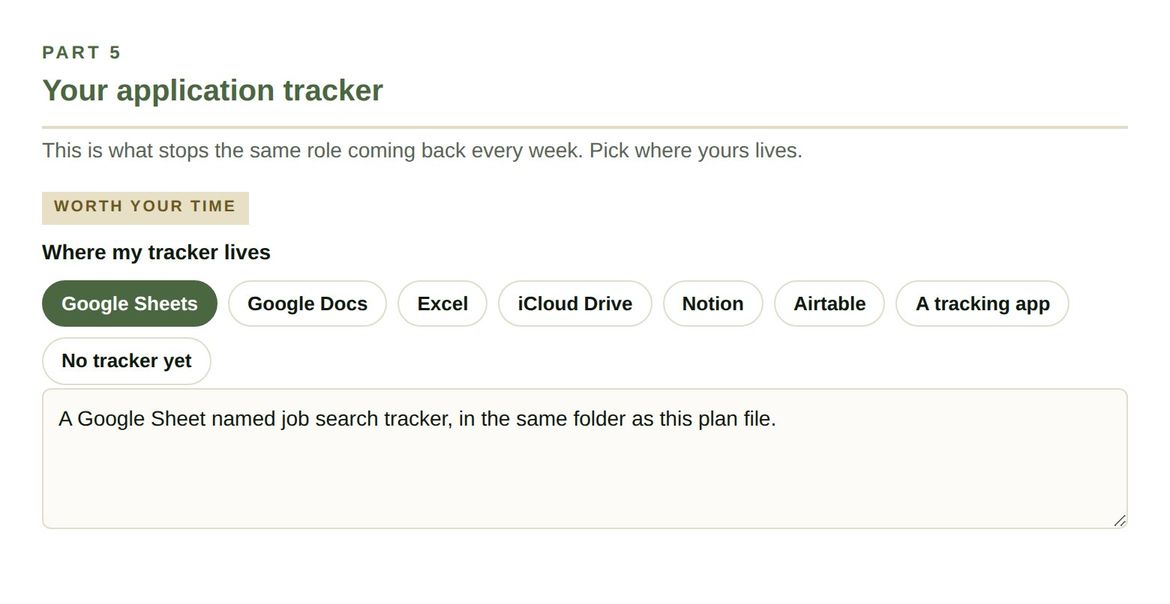
Part 5. Eight presets and one editable line, down from three fields of rules you had to write yourself. - Part 6, scoring. Five weights totaling 100, your surfacing threshold, and your key qualifications written as numbers and outcomes. The weights and the threshold arrive ready to use. The qualifications field is the one that changes the quality of the match reasoning, so spend your time there.
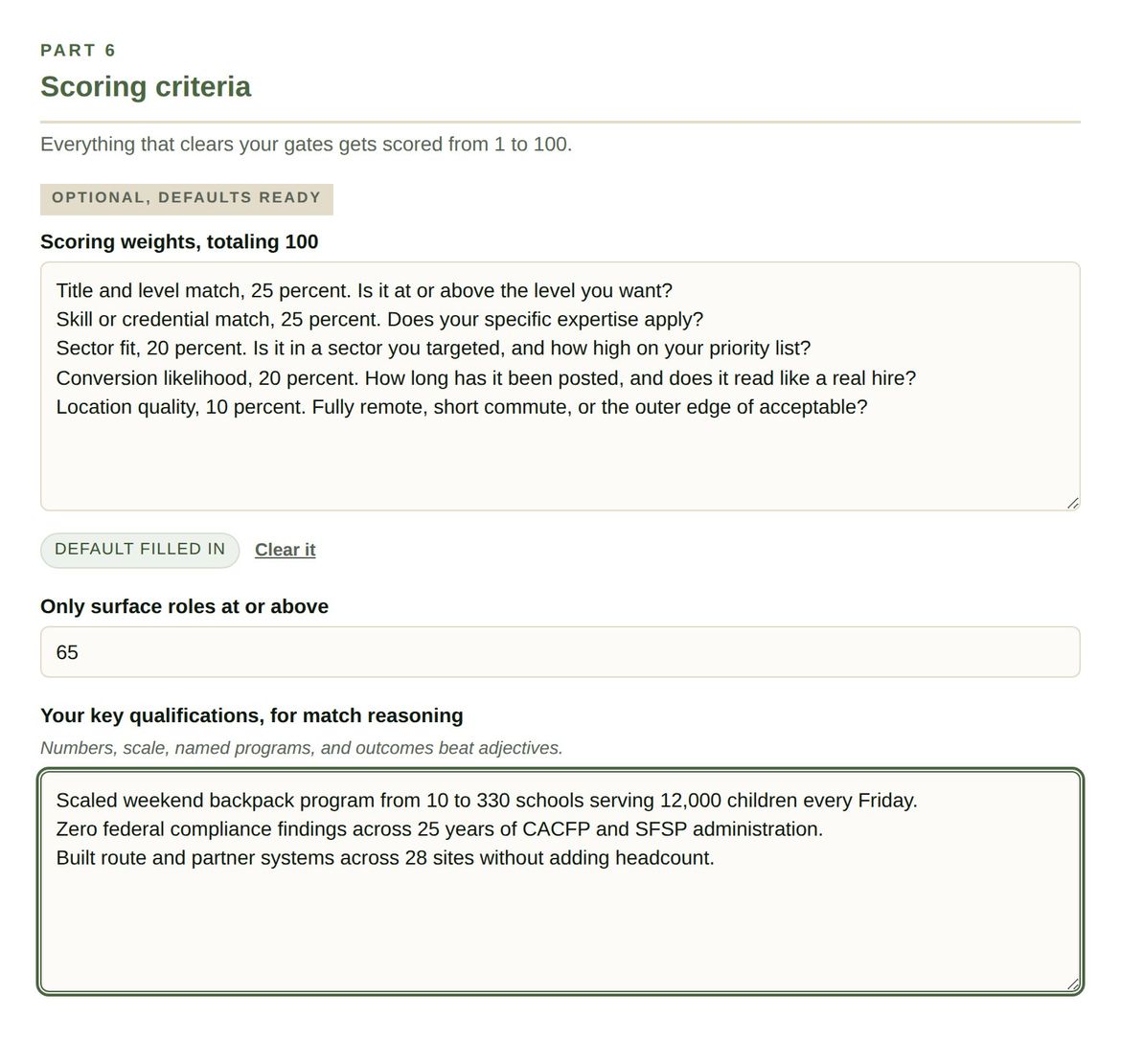
Part 6. Numbers, scale, named programs, and outcomes beat adjectives. The scout quotes these back when it explains a score. - Part 7, report and resume. Your resume versions, an optional pipeline snapshot, how many runs have already come back empty, and the fractional consulting leads checkbox. The stop rule and the report format are already written.
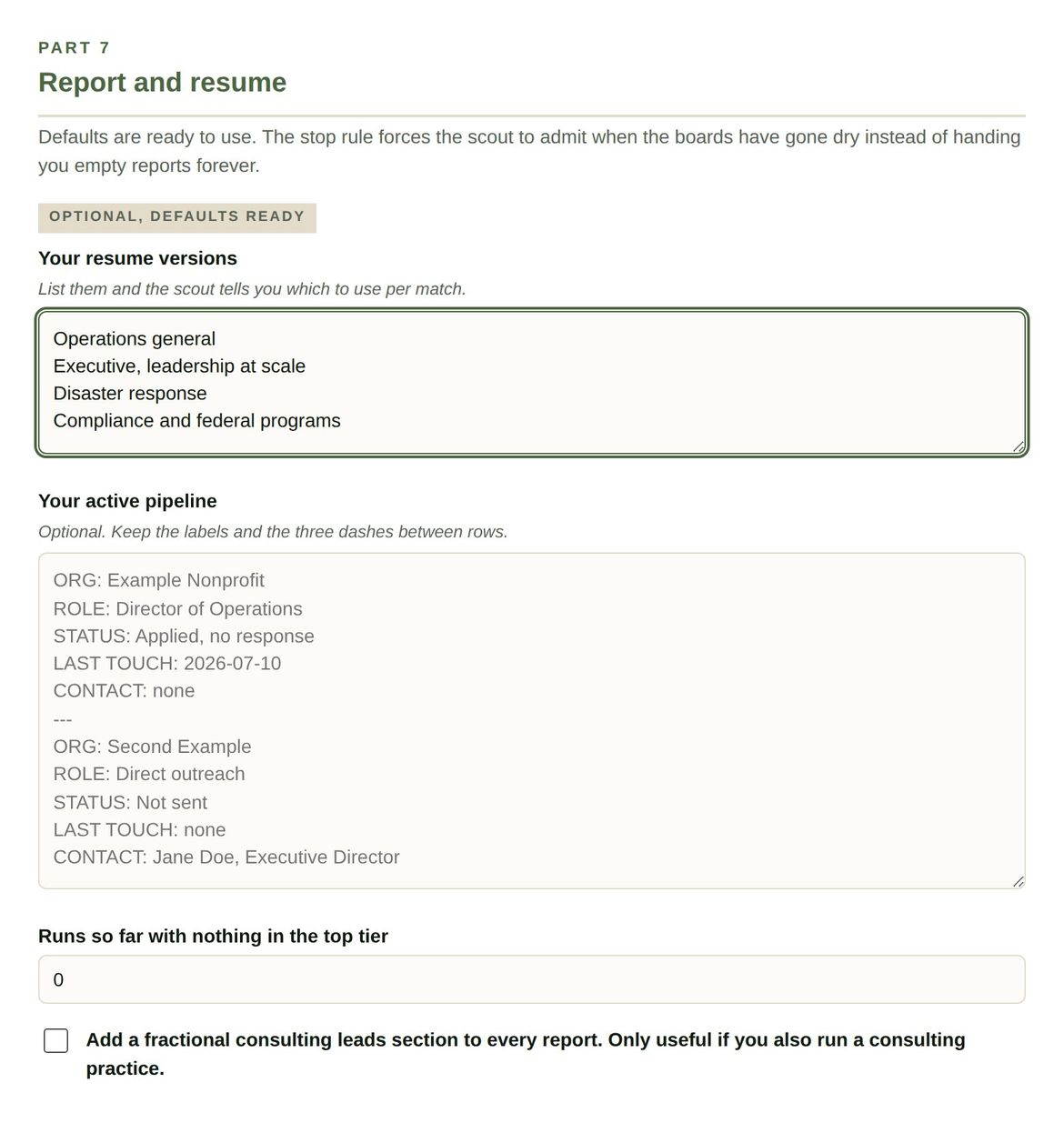
Part 7. Carry the empty run count forward yourself. A browser tool has no memory between sessions, and the stop rule fires at three. - Download the file, then run it. The last screen holds the download button, the editable copy of the file, and the next steps for whichever assistant you picked. Edit anything in the box and that is what downloads.
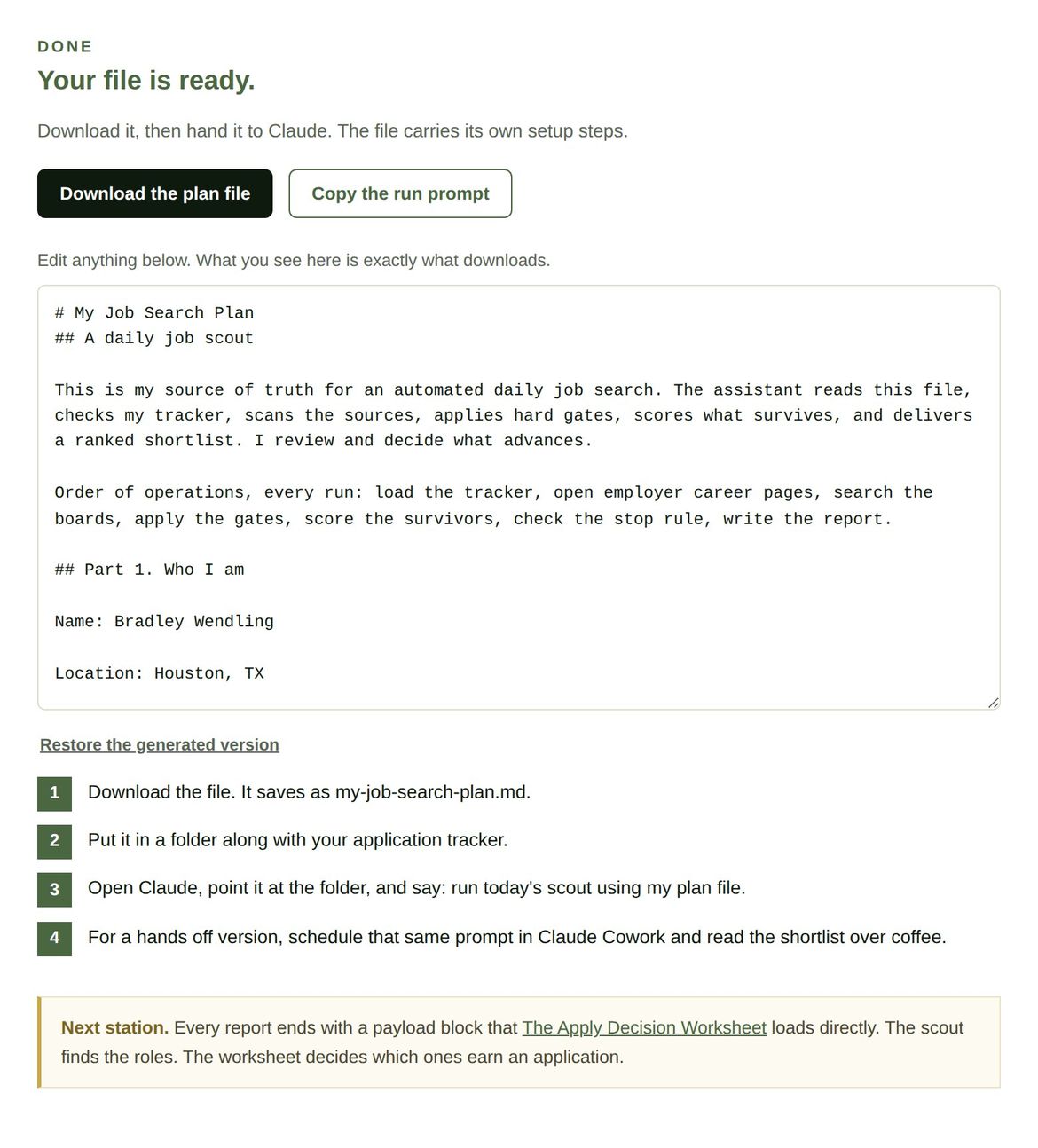
The last screen. The file is editable here, and the four next steps change depending on whether you picked Claude or ChatGPT. 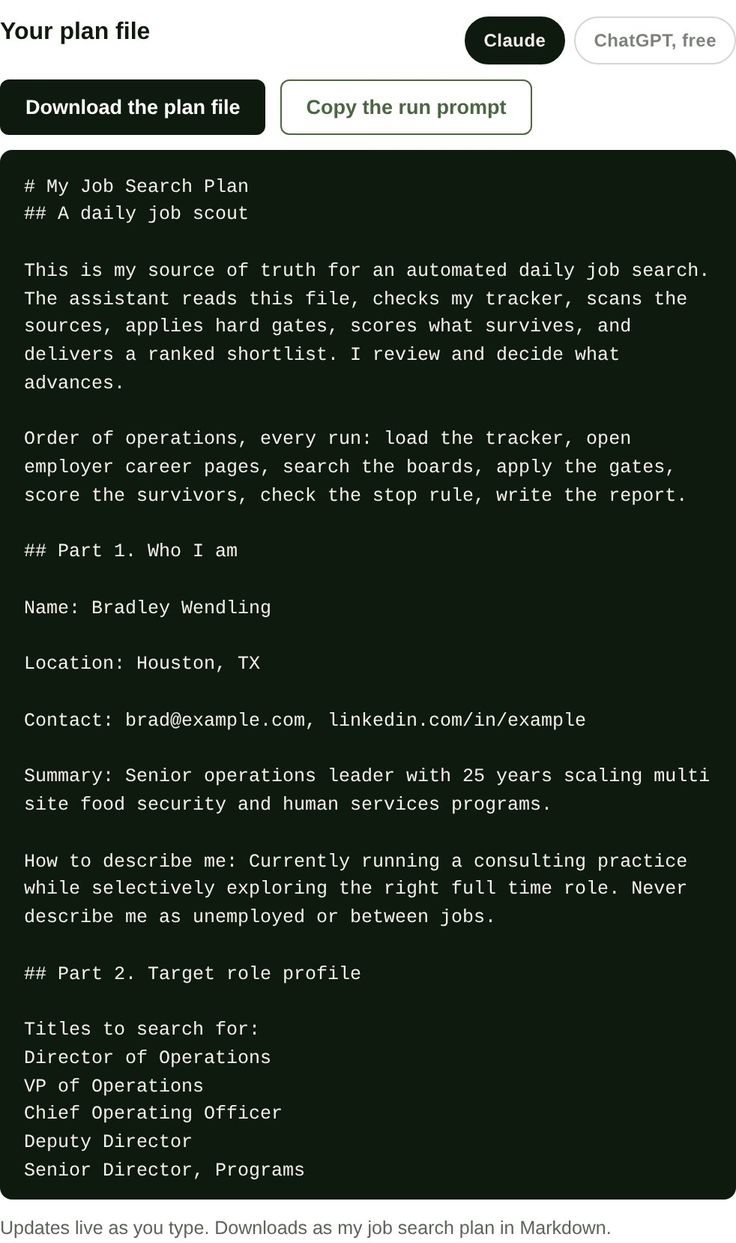
The live preview in the full form layout. The file updates as you type. In guided mode the same preview sits behind the Preview file button.
4. Tool two: The Apply Decision Worksheet
The scout stops at the shortlist. This is the next station. You work one posting at a time and get a call on each before you spend an hour tailoring a resume for a seat that may not exist.
The start screen names the two ways in. Coming from the scout, you load the report and every role arrives with its facts, its gates, and the posting's own requirement lines already in place. Starting from a single posting you found yourself, you skip the loader and enter one role by hand. Either way the same five screens follow.
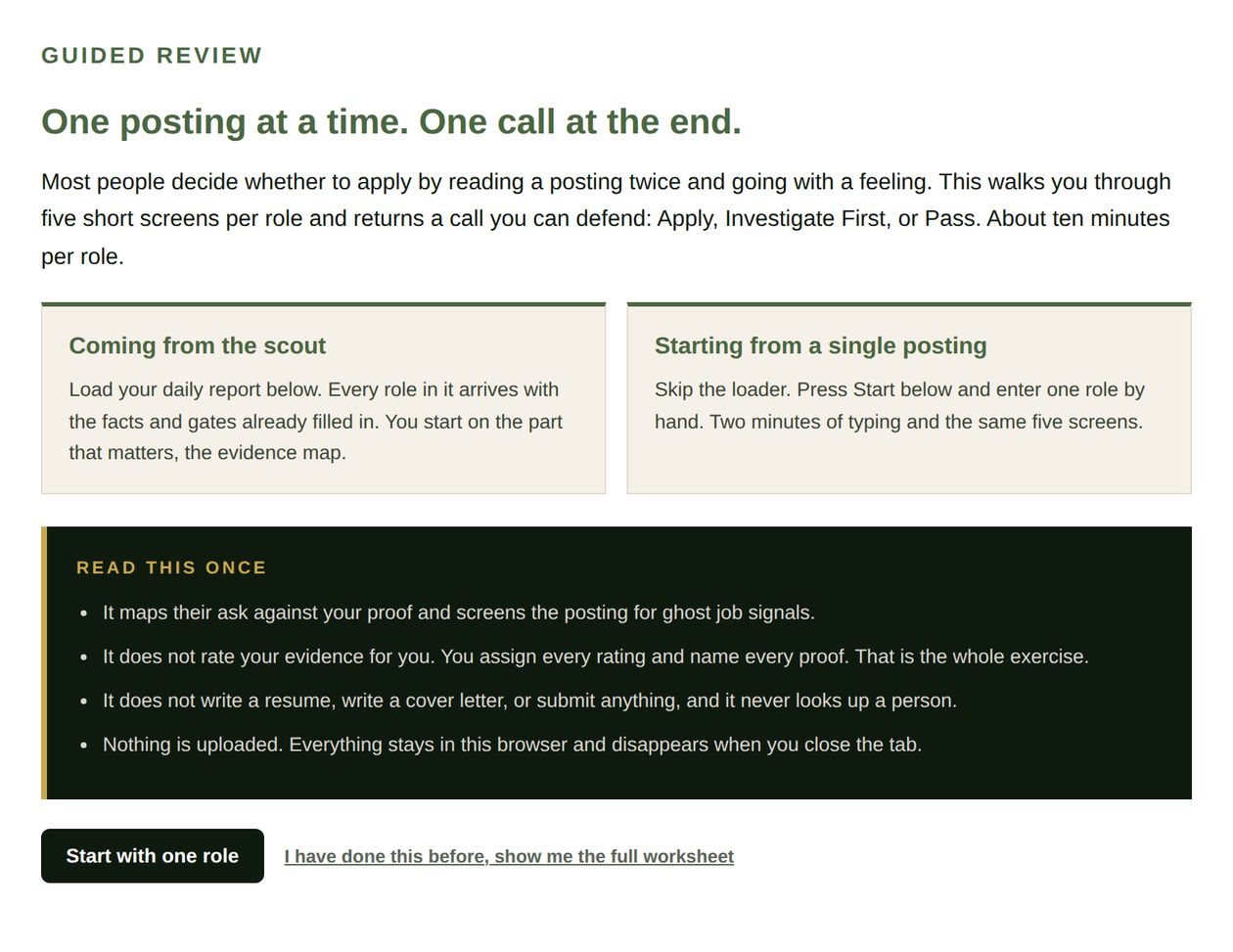
Loading a report skips almost all of the typing. Part 1 arrives filled in, five of the six hard gates in Part 2 arrive answered, the risk signals in Part 3 arrive checked, and the requirement lines are already sitting on Part 4. You land on Part 2 with one question open: the live confirmation gate. The scout cannot answer that one, because confirming a seat means opening the employer's careers page today and finding it listed. Answer it and Next takes you straight to the evidence map. Back will show you what the scout wrote.
What is new
- A live confirmation gate, first in the list. Before anything else, you confirm the seat is listed on the employer's own site today. An aggregator page keeps rendering after the requisition comes down, which is how most wasted tailoring hours start. It is the one gate the scout is not allowed to answer for you, so a loaded report lands on Part 2 with it open.
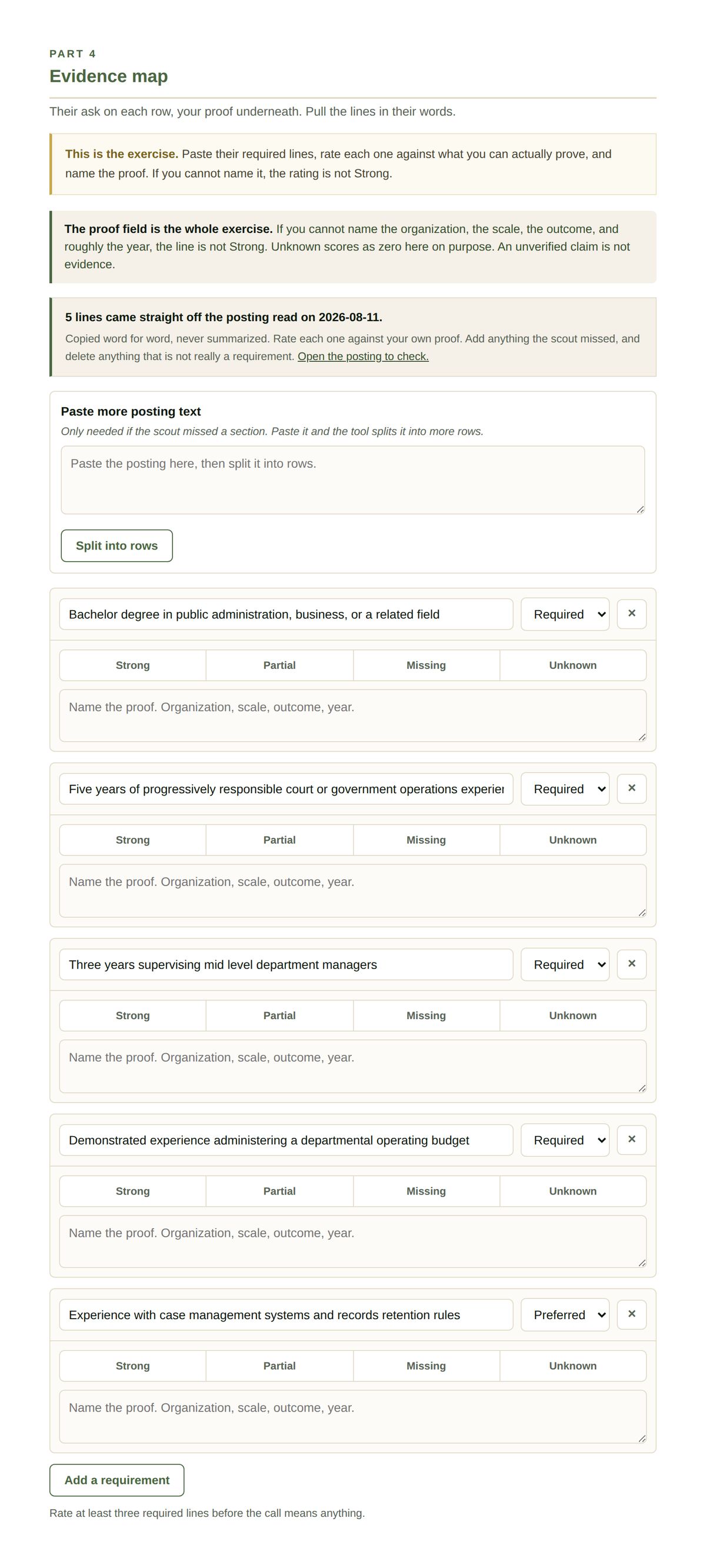
- Requirement lines arrive prefilled. Up to twelve per role, copied off the posting word for word, each already marked Required or Preferred. You rate them and name your proof. Nothing is pre rated, because the rating is the part only you can do.
- You can check the source in one click. A banner above the rows says how many lines came off the posting and the date the scout opened it, with a link to the live posting. A line you cannot find there should be deleted.
- When the lines cannot be pulled, it says so. If the posting would not open or carried no requirements section, the banner turns rust, names the reason the scout gave, and you paste the requirements in as before. Silence would have read as a posting with no requirements.
- A handoff at the end. The call is the last thing this tool does. Underneath it, three steps for logging the roles you are applying to, and links to Teal and Huntr.
- A way back to the guided screens. Switching to the full worksheet used to be permanent on that browser. There is now a link back at the top of the full worksheet, and ?guided=1 resets it from a cold start.
Features
- Guided screens with the call always visible. Five parts, one at a time, and the current call sits in the progress bar as a color coded chip so you never scroll to check it.
- Scout report intake. Choose the report file or paste the text. Markdown, plain text, JSON, and PDF all work. Parts 1 through 3 fill in for every role at once, and the tool takes you straight to Part 4.
- A fallback for reports with no payload block. If the block is missing, the roles are read straight out of the report text. Those arrive with every gate set to unknown, and the tool tells you so rather than letting read from text pass as verified.
- Role queue. Each role gets its own worksheet. You can also add roles by hand.
- Six hard gates. Live confirmation, pay, location, sector, scope, and stated requirements. Each answered Yes, Unknown, or No. One No ends it.
- Six signal risk screen. Repost, hidden pay, job family template, masked employer, duplicate text under another company name, and open more than 60 days, which is set automatically from the posted date.
- Evidence map. Their ask on each row, your proof underneath. Rate each line Strong, Partial, Missing, or Unknown. Unknown scores as zero.
- A live call with a cited rule. Apply, Investigate First, or Pass, and the panel names the rule that produced it.
- A resolve list. Every unanswered gate, unverified line, and gap becomes an open item before you apply.
- Outreach that opens only on an Apply call. One person, one question, sent after you apply.
- Three outputs. A filed worksheet for the role, a summary board covering every role in the queue, and an assistant prompt that asks an AI to pressure test your call.
- Nothing is uploaded. What you save stays in this browser on this device, and one button erases all of it.
Benefits
- You stop tailoring for ghost postings. The risk screen runs before the evidence map on purpose.
- You find out what you can actually prove. Unknown scores as zero, so an unverified claim never inflates a match rate.
- The tedious half is gone. Their requirements are already on the page, so the ten minutes go to judgment instead of copying.
- Your three strongest proof points come out named and ranked, which is the opening of the resume tailoring and the cover letter.
- Every decision is defensible, because the call cites the rule that produced it.
How to use it
Five screens per role, then the call. The role queue sits above them and holds one worksheet per role, so you can move between roles without losing your place.
- Load the shortlist. The loader sits on the start screen. Choose the report file or paste the report text, payload block included. If you are working a single posting instead, press Start with one role and skip this.
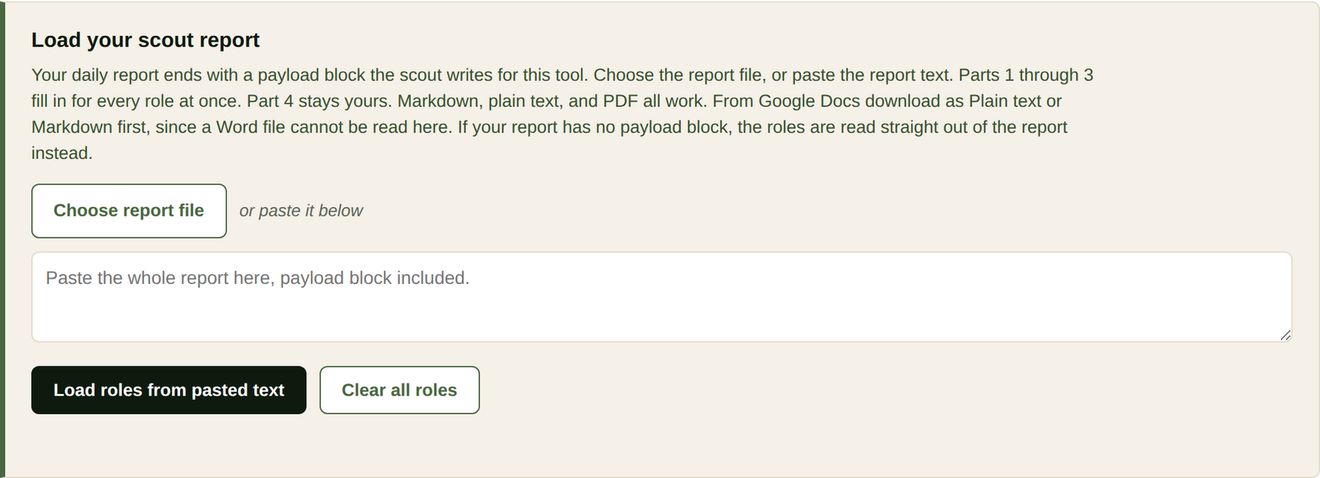
The intake accepts a file or pasted text, in Markdown, plain text, JSON, or PDF. The role queue sits underneath and holds one worksheet per role. - Confirm Part 1, the role. Facts off the posting, no judgment yet. The date posted drives the posting age and the stale signal in Part 3.
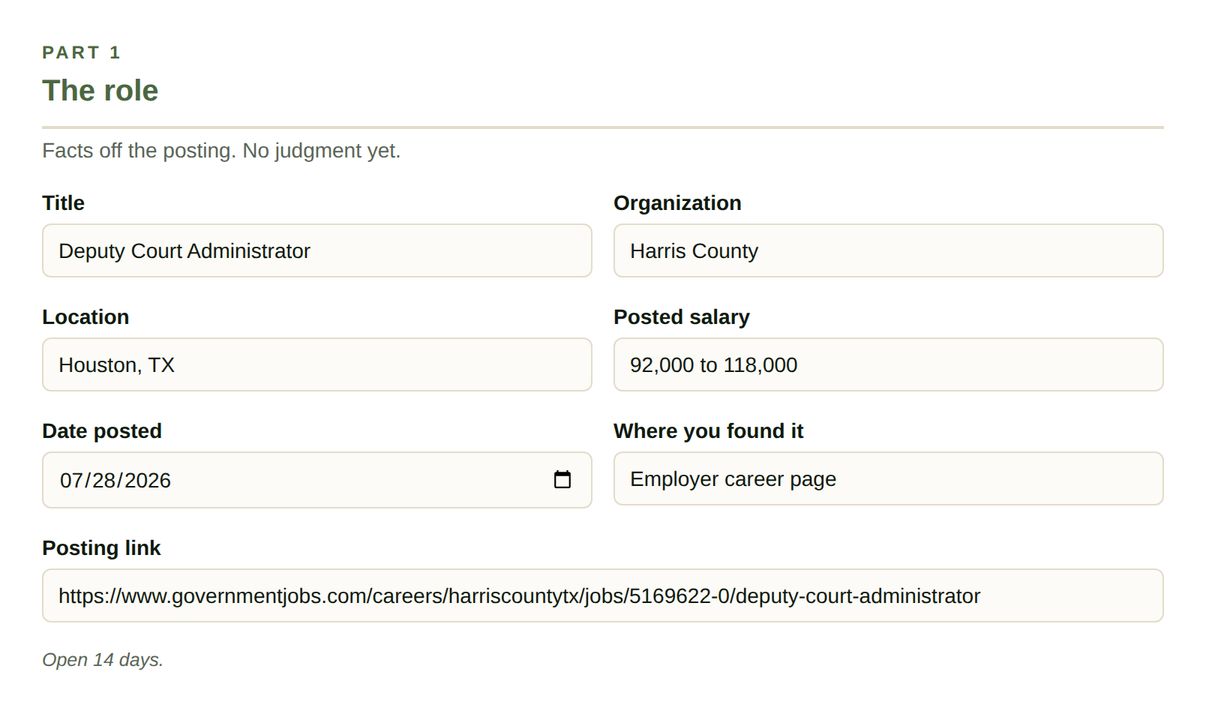
Part 1 after a report load. Every field came off the payload block, including the link you will need in a minute. - Answer Part 2, the hard gates. Six questions, three answers each. The first one is the live check, and it is the one the scout leaves blank on purpose: open the employer's careers page and find the seat listed today. Mark Unknown when the posting hides the salary range rather than guessing.
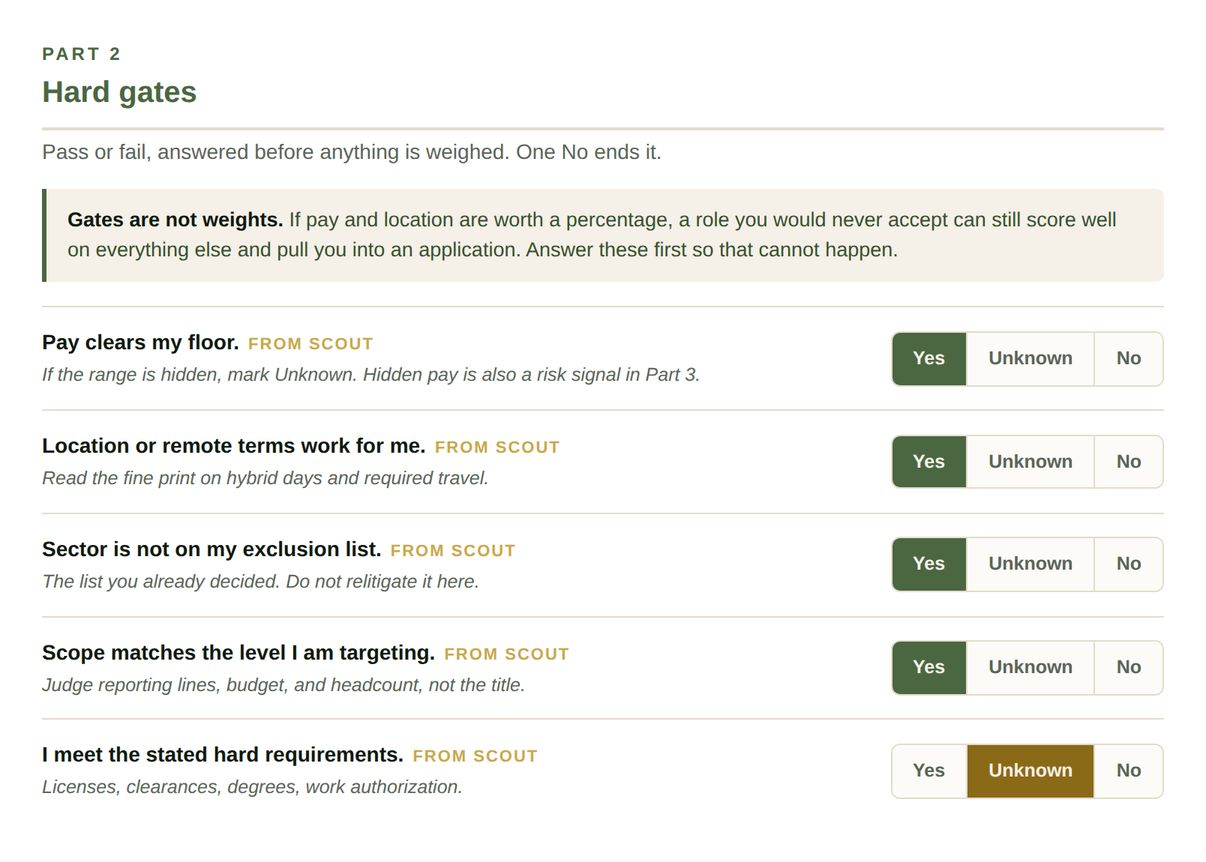
Part 2. Judge scope by reporting lines, budget, and headcount, not by the title on the posting. - Run Part 3, the risk screen. Check every line that is true. Three signals cap the call at Investigate First. Four is a Pass on its own.
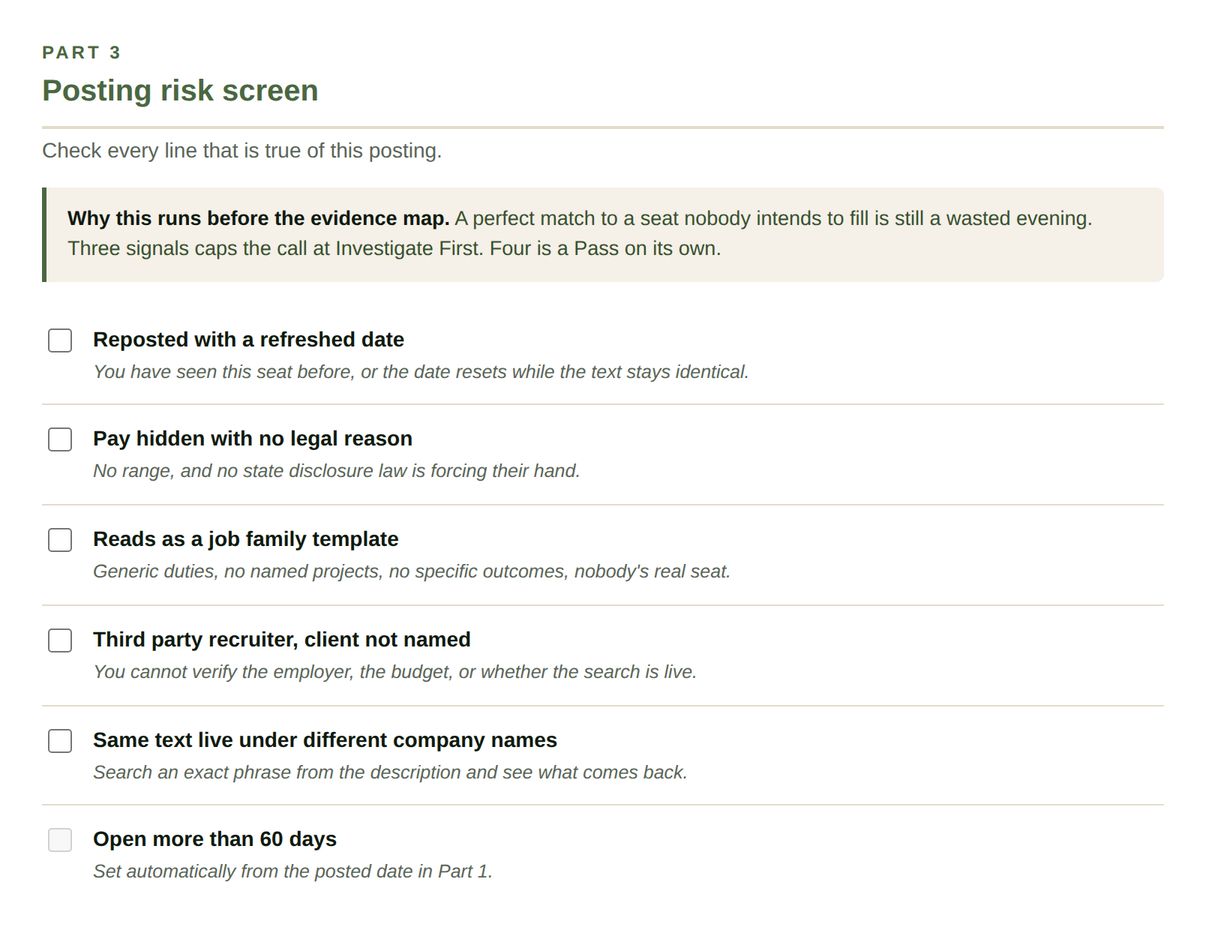
Part 3. The 60 day signal sets itself from the posted date. A posting marked open until filled is not a red flag, which is why this is a signal and not a gate. - Rate Part 4, the evidence map. The lines are already there. Read the banner, open the posting if anything looks off, delete what is not really a requirement, and add anything the scout missed. Then rate each line and name the proof. If you cannot name the organization, the scale, the outcome, and roughly the year, the line is not Strong.
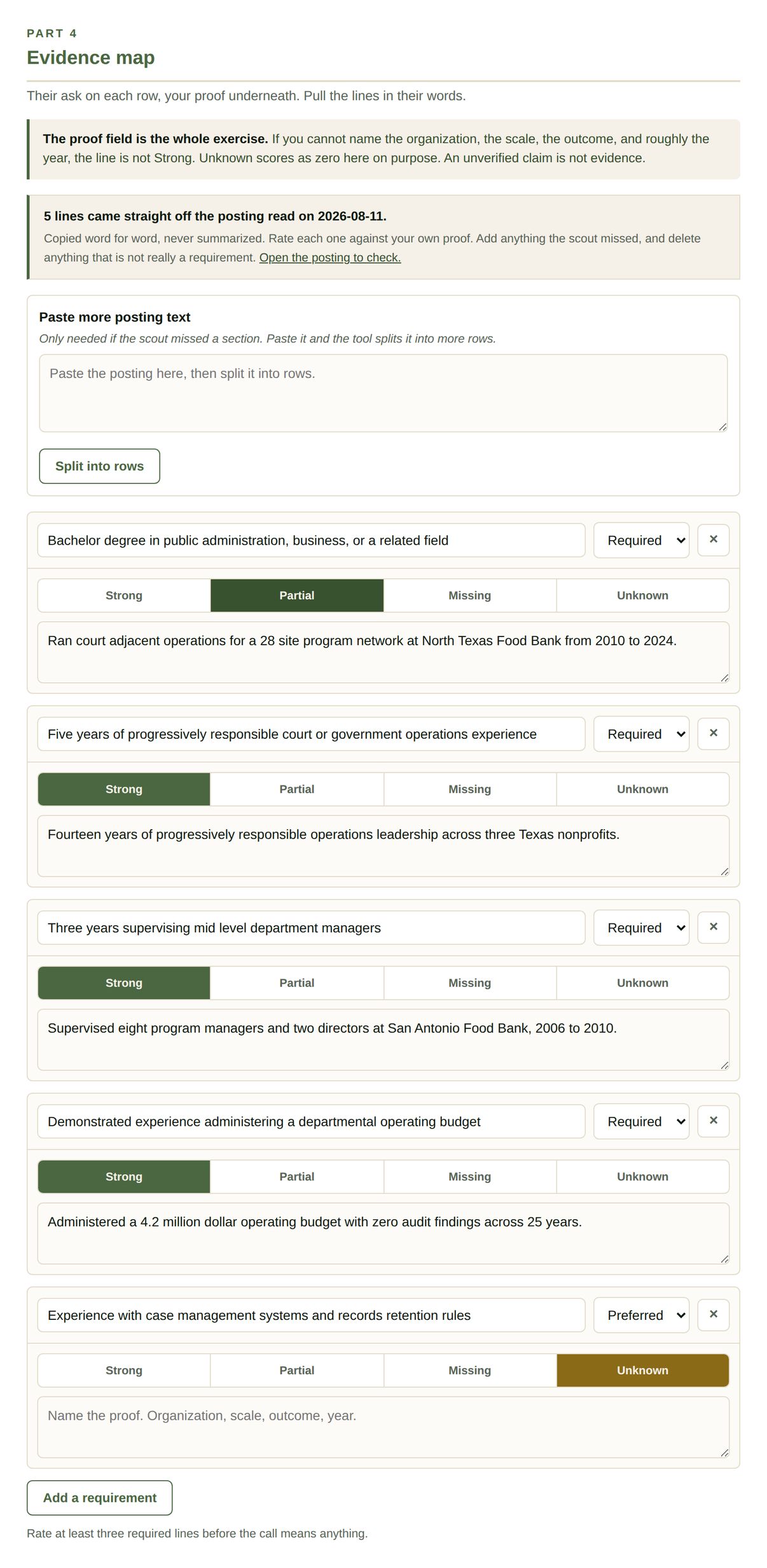
Part 4 with the lines prefilled and four of five rated. The last row is honest: no proof named, so it stays Unknown and scores zero. - Read the call. The sixth screen holds it, and the chip in the progress bar has been showing it the whole time. The panel shows match rate, required lines rated, missing lines, unresolved unknowns, and the risk count. The resolve list tells you what to close before you apply.
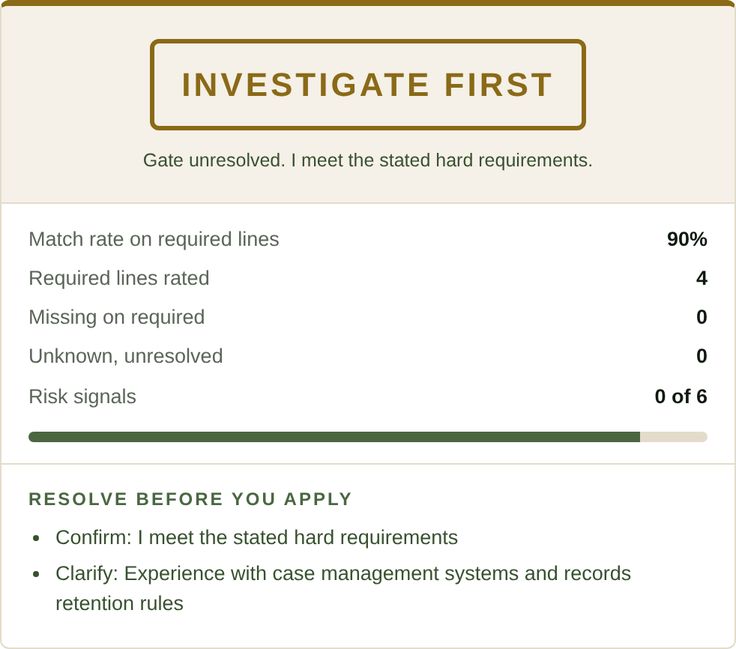
The call, and the rule that produced it. The resolve list underneath is what stands between you and an application. - Draft outreach only on an Apply call. Part 5 stays closed until then, because outreach before a decision is how drafted messages pile up unsent.
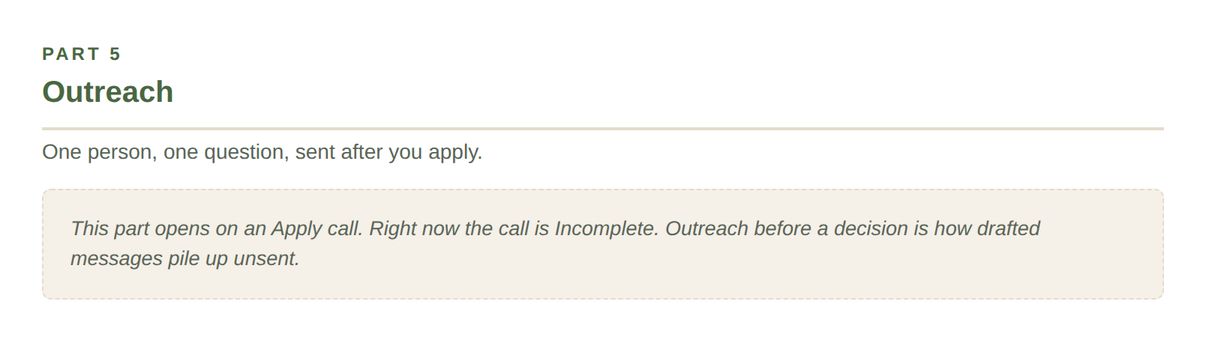
Part 5. One person, one question, sent after you apply. - Log the ones that earned a yes. Open the posting link from Part 1, click your tracker's browser extension on that page, and paste the summary board into the notes so the reasoning travels with the role.
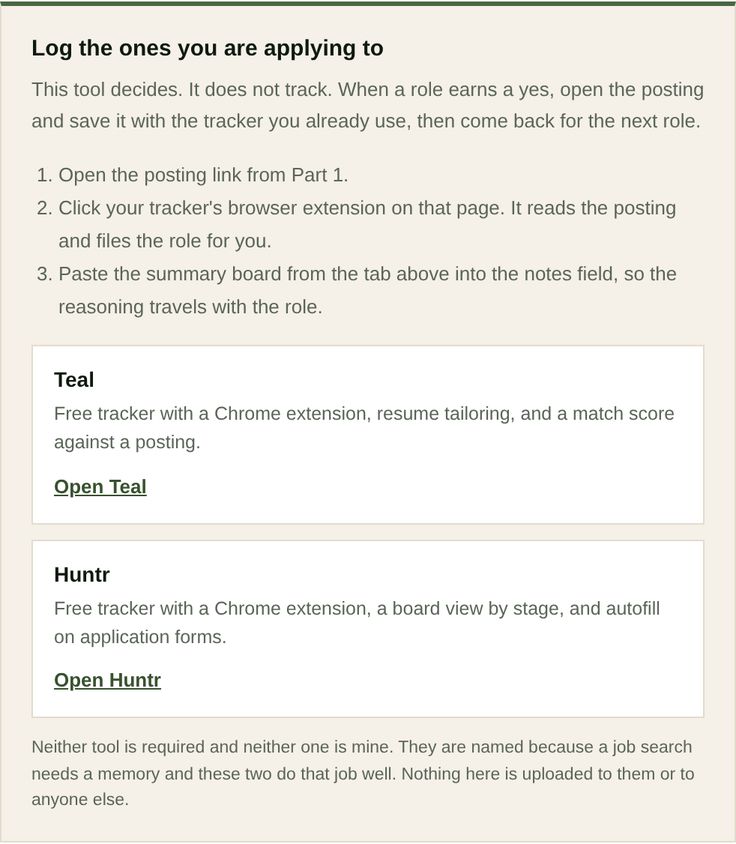
The handoff. This tool decides and does not track, so it ends by pointing at something that does.
5. Tool three: The ATS Reality Check
A free browser audit that returns no score, because no applicant tracking system produces one. They parse a file into fields, and a recruiter filters and searches inside those fields. Two things cost you the interview. A document the parser could not read, so half your career never reached the database. And language that does not match the term the recruiter typed into the box.
Features
- Pulls the requirement lines out of a pasted posting, drops the benefits and equal opportunity boilerplate, and guesses Required or Preferred on each. You correct both.
- Computes coverage per line from term overlap against your resume text. Covered, Partial, or Absent, with an override on every line.
- Names the missing terms and separates a real gap from a phrasing gap. The words are there but the phrase is not is a different problem than the work is not there.
- Seven questions about the document itself. Five of them are fatal on their own, and the first one, contact details sitting in a document header, is the most common single cause of a resume with no name and no email in the database.
- Automatic checks on the text you paste. Email, phone, recognizable Experience, Education, and Skills headings, four digit years, collapsed tab stops, flattened table rows, and unreadable glyphs.
- Three output tabs. The fix list, the term gap, and a rewrite prompt written to forbid claiming anything you did not do.
Benefits
- It tells you what to change, in your document, on which line. Not a number to chase.
- It catches the failure that never produces a rejection email. A parse failure looks exactly like silence.
- It costs five minutes and it runs before every send, so the fix compounds across the whole search.
How to use it
- Paste the posting into Part 1 and press Pull requirement lines.
- Export your resume to plain text and paste it into Part 2. That export is the test. If a section vanished, the parser lost it too.
- Work the coverage list in Part 3, overriding anything the tool called wrong.
- Answer the seven document questions in Part 4 about the file you are about to send, not about the text you pasted.
- Read the call, then work the fix list. Copy the rewrite prompt if you want an assistant to help with the wording.
6. Tool four: The Interview Evidence Kit
Interview prep built for the nonprofit and public sector room. Generic prep tools were built for software engineers and hand everyone the same forty behavioral questions. None of them know what a board interview is, or that an executive director asking about budget cuts is really asking whether you will hold the program together through a funder loss.
Features
- Five cross cutting questions, four to six by stage, and four by sector lane. Change the stage or the lane and the set rebuilds.
- Stages: first screen, hiring manager, panel, board, and final round. Lanes: food security, housing, human services, disaster and emergency management, government, and general nonprofit.
- Every question carries a line underneath it naming what is actually being tested.
- Four fields per card. Context, the number, what you decided, what changed. The card stays marked Thin until the number is in it.
- Their questions, grouped by what the answer reveals. Financial health, tenure and churn, board and authority, whether the seat is real, and the work itself.
- A warning sign list to check during or right after the conversation, and a debrief block that pastes into your tracker.
Benefits
- The number is the whole point. A senior operator who brings arithmetic beats a good talker in every room that matters.
- The questions you ask are read as closely as the answers you give. This gives you five that reveal something.
- The debrief captures what they said while you still remember it, which is what makes the next round easier.
How to use it
- Name the seat in Part 1, or load a scout report and let the title and organization fill themselves in.
- Set the stage and the lane. The cards rebuild immediately.
- Work every card. Four short lines each, not a paragraph.
- Pick four or five questions to ask them in Part 3, then print the prep sheet the night before.
- Fill the debrief in Part 5 within an hour of walking out and paste the block into your tracker.
7. The decision rules
| Condition | Call |
|---|---|
| Any hard gate answered No | Pass |
| Four or more risk signals | Pass |
| Three risk signals | Capped at Investigate First |
| Any gate still Unknown | Investigate First |
| Any required line rated Unknown | Investigate First |
| Match rate on required lines below 80 percent | Investigate First |
| All gates green, match rate 80 percent or better, two or fewer signals | Apply |
| Fewer than three required lines rated | Incomplete, the call means nothing yet |
Scout tiers, for reference: Apply Today is 85 to 100, Strong Consideration is 70 to 84, Watch is 65 to 69. The payload block carries the top two tiers, score 70 and above. Watch tier roles still carry open verification questions and do not belong on a decision worksheet as if confirmed.
The ATS Reality Check
| Condition | Call |
|---|---|
| No email or no phone number in the readable text | Rewrite |
| Any fatal document flag: contact in the header, a table, columns, a text box, or skills as a graphic | Rewrite |
| Three or more required lines Absent | Rewrite |
| One or more Absent, or three or more Partial | Fix first |
| Any nonfatal document flag still open | Fix first |
| Everything covered, no flags, contact details readable | Send as is |
| Fewer than three required lines rated | Incomplete, the call means nothing yet |
The Interview Evidence Kit
| Condition | Call |
|---|---|
| Fewer than five complete cards | Not ready |
| Fewer than five cards carrying a number | Not ready |
| Under eight complete, or under six carrying a number | Thin |
| Fewer than three questions prepared for them | Thin |
| Eight or more complete, six or more with a number, three or more questions to ask | Ready |
8. The weekly rhythm
- Daily, unattended. The scout runs, checks the tracker, scans the sources, and saves two copies of the report.
- Daily, ten minutes. Read the shortlist. Load the report into the worksheet. Work the roles that scored 70 and above, rating the requirement lines that are already sitting there.
- Same day. Apply on Apply calls, and save each one to your tracker from the posting page. Log Passes so they never resurface. Put open items on the calendar.
- Before every send. Run the posting and your resume text through the ATS Reality Check and clear the fix list. Five minutes, and it catches the failure that never produces a rejection email.
- The night before an interview. Print the prep sheet from the Interview Evidence Kit. Fill the debrief within an hour of walking out.
- Weekly. Review the summary board, count how many runs came back empty, and check whether the stop rule has fired.
- Monthly. Revisit the plan file. A stalled search usually needs new sources or a new lane, not more runs of the same scan.
9. Quick start checklist
- Open the builder and press Start guided setup. Fill in your target role profile on Part 1, pick your assistant on Part 2, work through Part 4, then press Defaults are fine, build my file.
- Read the file in the editable box on the last screen, change anything that reads wrong, then download it.
- Create or export your tracker, then go back to Part 5 and tap the preset that matches where it lives.
- Put the plan file and the tracker in one folder your assistant can reach.
- Schedule the run, then watch one unattended run end to end before you trust it.
- Open the worksheet, load the first report on the start screen, and work three roles. Confirm each one is still live on the employer site, then rate the requirement lines that arrived with it.
- Install a tracker extension, Teal or Huntr, so logging an application is one click from the posting page.
- Once both tools feel familiar, switch to the full form with Show all questions on one page, or bookmark the ?full=1 links. If you want the guided screens back later, the link at the top of the full form restores them.
- Before you send anything, paste the posting and your resume text into the ATS Reality Check and clear the fix list.
- When an interview gets scheduled, open the Interview Evidence Kit, set the stage and the lane, and work the cards until the state reads Ready.
- Log every call in the tracker the same day.
10. Guardrails and common failure points
- Gates before weights. A role in a sector you refuse can score in the eighties on everything else and land at the top of your list if you treat exclusions as a percentage. You no longer write the gates, but you still write what feeds them. A blank salary floor and a blank exclusion list produce a scout with nothing to enforce.
- An aggregator listing is not an open seat. A clean posting on a job board proves a requisition existed at some point. The scout confirms every find against the employer's own careers page and the worksheet asks you to confirm it again on the day you decide. Both checks exist because this is the most common way an hour of tailoring gets spent on nothing.
- The tracker is not optional. Without it the scout has no memory of what you decided and will hand the same role back for weeks.
- Never guess a payload field. An empty string, an unknown, or a false is honest. A guessed field is indistinguishable from a verified one once it reaches the worksheet.
- Write the JSON raw. A backslash in front of a bracket makes the block unreadable, and the failure is silent until you try to load it.
- Automation does not fix a search that is not producing. If the boards are quiet in your field, direct outreach to named organizations is its own lane and it usually outperforms more sourcing.
- Three or four active processes are the front of a funnel, not the whole pipeline. Keep sourcing during live conversations.
- Read what the resume import filled in. It reads the text of a PDF and makes its best guess at your titles and proof points. It is a head start, not a transcript. Correct it before you move on, because whatever is in those fields is what the scout reasons from.
- Editing the finished file does not edit your answers. Changes you make in the box on the last screen apply to that download only. Change the fields themselves if you want the change to stick.
- The saved draft lives in one browser. The builder remembers your answers on the device you used. It does not sync. The plan file you download is the copy that matters, so download it even on a first pass.
- Check the requirement lines against the posting. They arrive copied off the page, and the banner tells you the date the scout opened it. If a line is not in the posting, delete it. A line you never verify is a line you might tailor a resume toward for no reason.
- An empty payload block is an answer, not a failure. Zero roles means the scout found nothing worth your time that day. Three of those in a row is the stop rule, and the fix is the source list, not the tool.
- Roles read out of report text are not verified. When a report has no payload block, the worksheet reads the roles from the text and every gate comes in as unknown. Answer them yourself. Read from text is not the same as confirmed.
- A score out of a hundred is fiction. No applicant tracking system produces one. Any tool that hands you 78 out of 100 invented that number, and the fixes it recommends aim at a threshold nobody is measuring.
- Plain text is the parse test, not a workaround. If a section disappears when you export your resume to text, the parser lost it too. Fix the document, not the export.
- Never claim work you did not do. A coverage gap gets closed with better wording for real experience or it stays open. The rewrite prompt is written to refuse anything else, and so should you be.
- Live coaching during an interview is not preparation. An earpiece or a second screen feeding answers is detectable, and in a sector this small it ends processes. All of the work happens before the room.
- A story without a number loses. The Interview Evidence Kit keeps a card marked Thin until the number is in it, because that is the field people skip and it is the field that decides the interview.
- Saving is on by default, and it is local. The four tools share one record in this browser called your Career File, so a proof card written once is offered everywhere. Nothing is uploaded. Export it if you want a copy, erase it in one click, and do not leave saving on if you are using a shared or work computer.